

5 Samsung Galaxy Features You Should Enable Right Now
Samsung Galaxy smartphones offer much more than powerful cameras, bright displays, and fast processors. Samsung's One UI software includes numerous useful tools that can make everyday tasks easier, improve customization, and help users get more out of their devices.
While some features are available immediately after setting up a phone, others require users to enable them manually or install an additional Samsung application.
If you own a compatible Galaxy smartphone, exploring these settings could reveal useful capabilities you haven't been using. Here are five Samsung Galaxy features worth checking out.
1. Control Music Using Your Volume Buttons
Your phone's volume buttons are normally used to adjust sound levels. However, Samsung provides additional customization options that can make controlling music more convenient.
With the Sound Assistant module available through Samsung's Good Lock customization suite, compatible Galaxy devices can use volume-button shortcuts to control music playback.
This can be particularly useful when your phone is in your pocket, you're exercising, or you don't want to unlock the screen every time you need to change a track.
Depending on the available settings, you may be able to configure button presses to perform actions such as skipping to the next track or returning to the previous one.
How to Enable Music Controls
- Open the Galaxy Store on your Samsung phone.
- Search for Samsung Good Lock and install it if available for your device.
- Open Good Lock and locate the Sound Assistant module.
- Install and open Sound Assistant.
- Explore its volume-button or media-control settings.
- Enable and configure the available shortcuts.
The exact options depend on your Galaxy model, One UI version, and the installed Sound Assistant version.
2. Customize Your Phone With Samsung Good Lock
Samsung Good Lock is a customization platform that offers additional ways to personalize compatible Galaxy smartphones.
Instead of relying only on the standard wallpaper, theme, and home-screen settings, users can install individual modules to change aspects of the interface and system behavior.
Depending on the modules available for your device, you can customize elements such as:
- Lock-screen layouts and clock styles
- Quick Settings and notification panels
- Home-screen appearance
- Navigation gestures
- Multitasking and task-switching behavior
- Keyboard appearance and functionality
Good Lock is especially useful for people who want more control over how their smartphones look and operate.
How to Get Started With Good Lock
- Open the Galaxy Store.
- Search for Good Lock.
- Install the official application if it is supported in your region.
- Open the app and browse its available modules.
- Install the modules that match your needs.
- Open each module and adjust its settings.
Not every module is available on every Galaxy phone or in every country. Some customization options also require a compatible version of One UI.
3. Use Modes and Routines to Automate Tasks
Samsung's Modes and Routines feature can automatically adjust your phone's settings when certain conditions are met.
For example, you can create a routine that turns on Do Not Disturb at bedtime, activates power-saving settings when your battery gets low, or changes audio settings when your headphones connect.
Instead of manually adjusting the same settings every day, you can configure your phone to perform these tasks automatically.
Examples of Useful Routines
Bedtime routine: Enable Do Not Disturb and adjust the screen settings at night.
Battery-saving routine: Activate power-saving settings when your battery reaches a selected level.
Work routine: Change notification behavior during working hours.
Headphone routine: Open a music application when compatible headphones connect.
How to Set Up a Routine
- Open Settings on your Samsung Galaxy phone.
- Select Modes and Routines.
- Open the Routines section.
- Tap the plus icon to create a new routine.
- Choose a condition that will trigger the routine.
- Select the actions your phone should perform.
- Save the routine.
Available triggers and actions vary by model and software version, but even a simple routine can reduce the number of steps needed to manage your phone.
4. Use Separate App Sound for Different Audio Outputs
Separate app sound is a useful feature for people who listen to music, watch videos, or use navigation while connected to Bluetooth audio equipment.
It allows selected applications to send their audio to a different output device from the phone's other sounds.
For example, you could configure a music app to play through a Bluetooth speaker while navigation instructions or other audio continue playing through your phone, provided your device and audio configuration support the setup.
This feature can be particularly useful when you want to keep different types of audio separate.
How to Enable Separate App Sound
- Open Settings.
- Select Sounds and vibration.
- Find Separate app sound.
- Turn the feature on.
- Select the application whose audio you want to separate.
- Choose the desired audio device.
Your phone may require a compatible Bluetooth device to be connected before it appears as an available output.
The available routing options can differ depending on the Galaxy model and One UI version.
5. Make Better Use of Samsung Finder
Samsung Finder helps you locate apps, settings, files, and other information on your Galaxy phone.
Rather than opening several menus to find a particular option, you can use Finder to search directly from the device's interface.
For example, if you want to change a display setting, locate an installed application, or find a file, searching can be faster than navigating through multiple folders and menus.
Depending on the software version and supported applications, Finder may also display additional search results from compatible services.
How to Use Samsung Finder
- Open the app drawer on your Galaxy phone.
- Tap the search field or Finder option.
- Enter the name of an app, setting, or file.
- Review the results.
- Tap the relevant result to open it.
On some devices, Finder is integrated into the app drawer or can be accessed through the search interface.
Using Finder regularly can make it easier to navigate a phone with many installed applications and customized settings.
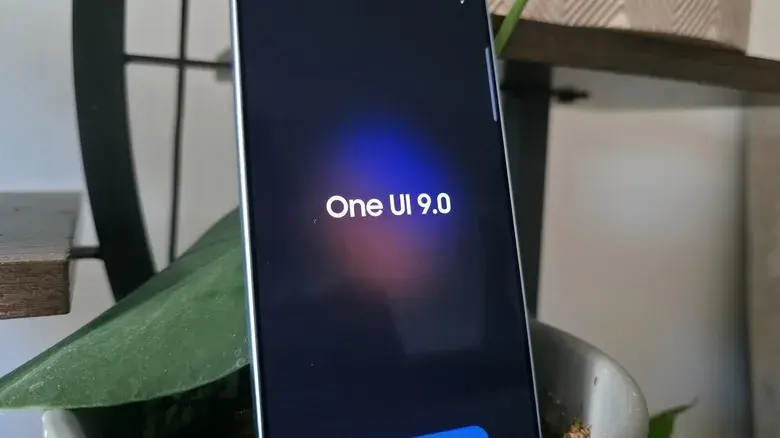
Why You Should Explore Samsung Galaxy Settings
Samsung smartphones include a wide range of software tools, but users do not always explore them after the initial setup.
Features such as Good Lock, Modes and Routines, and Separate App Sound can help personalize the device and simplify everyday tasks.
Some features require additional applications, while others are built directly into One UI. Their availability depends on the phone model, software version, and region.
If you cannot find a particular setting, check for software updates or search for the feature's name in your phone's Settings menu.
Final Thoughts
Samsung Galaxy phones offer many customization and productivity features beyond their standard calling, messaging, and camera functions.
Music controls through Sound Assistant, Good Lock customization, automated routines, Separate App Sound, and Samsung Finder are five features worth exploring on compatible devices.
You do not need to enable every option. Start with the tools that solve a problem you encounter regularly, and customize your phone to suit your daily routine.
With a little exploration, you may discover that your Galaxy smartphone can do considerably more than you expected.
Leave a comment
Your email address will not be published. Required fields are marked *