

iPhone System Data Can Consume Too Much Storage: What It Means and How to Free Up Space
Running out of storage on an iPhone can be frustrating, especially when photos, videos and installed apps are not responsible for most of the space being used. In some cases, the hidden culprit is System Data, a storage category that can unexpectedly occupy several gigabytes or, in extreme cases, more than 100GB.
Apple uses System Data to store temporary files, caches, system logs and other resources needed to keep iOS running smoothly. Although this storage is supposed to be managed automatically, some iPhone users have reported unusually large System Data figures that leave little room for personal files and applications.
A report published by Yahoo Tech, originally from Mashable, highlights how this issue can affect iPhone owners. One user's System Data reportedly reached 80GB on a 256GB iPhone before dropping to 50GB the following morning. Other users have reported even larger figures.
What Is System Data on an iPhone?
System Data is a category in iPhone storage that includes temporary information and resources used by iOS and different system processes.
According to Apple's explanation quoted in the report, this category includes caches, logs and other resources currently being used by the system. Its size can change depending on the device's requirements.
System Data is different from the storage occupied by the iOS operating system itself. It is also separate from the storage listed for individual applications, photos, videos and downloaded files.
Some of the information that can contribute to System Data includes:
Temporary system files and logs.
Cached information used by applications.
Browser-related temporary data.
System resources needed for ongoing processes.
Other temporary files created during normal iPhone use.
These files can help applications and system services work efficiently, but their storage requirements may fluctuate considerably.
Why Does iPhone System Data Become So Large?
There is no single reason why System Data increases on every iPhone. Its size depends on how the device is used, which applications are installed and what temporary resources iOS needs.
For example, frequently using social media applications, streaming services and web browsers can generate cached information. iOS may also create temporary files while performing background tasks, processing data or managing system resources.
Normally, the operating system should remove unnecessary temporary files when storage space is required. However, reports from iPhone owners suggest that this automatic cleanup does not always happen as expected.
In some cases, System Data can grow to an unusually large size and reduce the available storage significantly.
How to Check System Data Storage on Your iPhone
Before trying to free up space, check how much storage System Data is actually using.
Follow these steps:
Open the Settings app on your iPhone.
Tap General.
Select iPhone Storage.
Wait for the storage breakdown to load.
Scroll down to find System Data.
You can also check how much space is occupied by applications, photos, messages and other files from the same screen.
If System Data is using an unusually large portion of your total storage, you may want to try the following steps.
7 Ways to Manage iPhone System Data and Free Up Storage
Apple says iOS automatically manages temporary files and removes unnecessary caches when storage space is needed. There is currently no dedicated button that lets users completely erase System Data.
However, several troubleshooting methods may help reduce unnecessary storage usage.
1. Restart Your iPhone
Restarting your iPhone is one of the easiest troubleshooting steps.
A restart can refresh system processes and may help remove certain temporary files. Some users have reported noticeable reductions in System Data after restarting their devices.
To restart most modern iPhones:
Press and hold the Side button and either Volume button.
Drag the power-off slider.
Wait approximately 30 seconds.
Press and hold the Side button until the Apple logo appears.
Check System Data again under iPhone Storage.
Keep in mind that restarting does not guarantee a reduction in storage.
Yahoo Tech+1
2. Clear Safari Browsing History and Website Data
Safari stores website information and temporary browsing data to improve loading times and browsing performance.
Removing unnecessary browsing information may help free up some storage.
Follow these steps:
Open Settings.
Go to Apps and select Safari.
Tap Clear History and Website Data.
Choose the period you want to clear.
Confirm your selection.
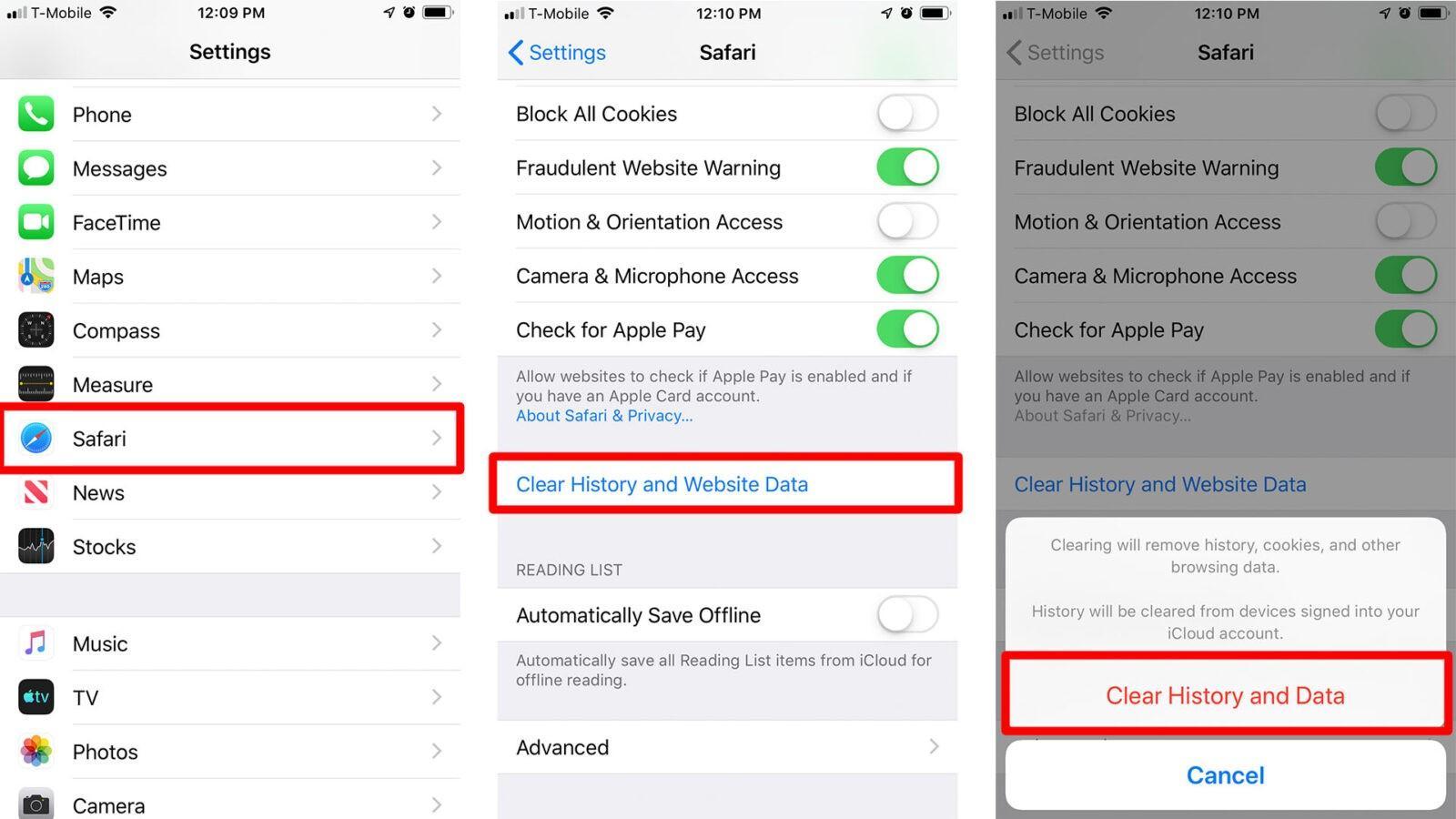
Be aware that clearing browsing data can sign you out of websites and remove browsing history.3. Delete and Reinstall Apps That Use Too Much Storage
Some applications accumulate large amounts of cached information over time.
Unlike many Android phones, iPhones do not offer a universal option to clear the cache of every individual application. Deleting and reinstalling an app can remove some of its locally stored temporary data.
To do this:
Open Settings.
Select General.
Tap iPhone Storage.
Choose an application using significant storage.
Tap Delete App.
Reinstall it from the App Store if needed.
Before deleting an application, make sure important information is backed up or synchronised. Some apps store data locally, and deleting them could remove information that cannot be recovered.
4. Remove Unnecessary Messages and Attachments
Messages, photos, videos and attachments can consume considerable storage over time.
You can review large attachments and remove conversations or files you no longer need.
You can also adjust how long your iPhone keeps messages:
Open Settings.
Select Apps and then Messages.
Find Keep Messages.
Choose a shorter retention period if appropriate.
Depending on your iOS version, the menu layout may differ.
Remember that changing this setting can automatically delete older messages, so review your conversations before making changes.
5. Update Your iPhone to the Latest iOS Version
Software updates can include bug fixes, performance improvements and changes to storage management.
If an iOS issue is causing temporary files to accumulate, installing a newer software version may help.
To check for an update:
Open Settings.
Tap General.
Select Software Update.
Install an available update if one is offered.
How to Fix WhatsApp Restore from iCloud Taking Forever Easily
6. Review Downloaded Content and App Storage
Some applications store downloaded videos, music, documents and offline files that may no longer be needed.
Check applications such as streaming services, browsers and social media platforms for unnecessary downloads.
You can review app storage by opening:
Settings → General → iPhone Storage
Select an application to see how much space it occupies. Where possible, remove unwanted downloads from within the application itself.
This may free up storage outside the System Data category, but it can still help create more available space on your iPhone.
7. Back Up and Restore Your iPhone
If System Data continues occupying an unusually large amount of storage despite trying basic troubleshooting methods, backing up and restoring your device may be an option.
Before proceeding, create a complete backup using iCloud or a computer.
Then follow these steps:
Open Settings.
Tap General.
Select Transfer or Reset iPhone.
Choose Erase All Content and Settings.
Follow the instructions to erase your device.
Restore your iPhone using your backup.
How to See & Retrieve Deleted Text Messages on Your iPhone
This is a more drastic solution and should be considered only after less disruptive options have failed. Make sure your important files, passwords and account information are safely backed up before proceeding.
How Much System Data Storage Is Normal on an iPhone?
System Data does not have a fixed storage requirement. Its size changes according to iOS activity, installed applications and temporary files.
Some reports suggest that several gigabytes or even tens of gigabytes can be used, depending on the device and its usage. There is no universal figure that applies to every iPhone.
Here is a general guide to help you understand your storage usage:
| System Data size | What it may indicate |
|---|---|
| 5–10GB | A relatively modest amount |
| 10–20GB | May be normal depending on usage |
| 20–30GB | Worth monitoring |
| 30–50GB | Consider troubleshooting |
| More than 50GB | Potentially excessive; investigate |
These are practical reference ranges, not official Apple limits or diagnostic thresholds.
Can You Completely Delete System Data From an iPhone?
No. iOS needs temporary files, caches and other system resources to function properly. Removing all System Data is neither possible through a normal settings option nor necessary.
Apple explains that iOS manages these files automatically and removes temporary resources when they are no longer needed.
The most important thing is to identify whether System Data is genuinely consuming an unusual amount of storage or simply fluctuating as part of normal system activity.
If the storage figure suddenly becomes extremely large and does not decrease, restarting, updating iOS and reviewing application data are reasonable first steps.
Final Thoughts
iPhone System Data can become a frustrating storage problem, especially when it occupies a large portion of the device's available capacity.
Although this category contains temporary files and resources needed by iOS, some users have experienced unusually high storage usage that does not disappear immediately.
Apple says the operating system handles temporary-file cleanup automatically, so users do not need to manually erase System Data. However, restarting the device, clearing Safari data, reviewing applications and installing software updates may help address certain storage issues.
If nothing works and System Data continues growing excessively, backing up and restoring the iPhone may be worth considering.
Ultimately, keeping track of storage usage and regularly removing unnecessary downloads can help prevent your iPhone from running out of space unexpectedly.
اترك تعليقاً
لن يتم نشر عنوان بريدك الإلكتروني. الحقول المطلوبة مشار إليها بـ *