

Switching to a new smartphone can be exciting, but transferring your security apps is something you should never overlook. If you use Google Authenticator to protect your email, social media, banking, or cryptocurrency accounts, moving to another phone without preparing first could lock you out of important services.
Fortunately, Google Authenticator offers cloud synchronization and manual QR-code transfers, making it easier to move your verification codes between Android and iPhone devices.
Whether your old phone is still working or has been lost or damaged, understanding the available transfer methods can help you protect your accounts and avoid unnecessary recovery problems.
What Is Google Authenticator and Why Do You Need It?
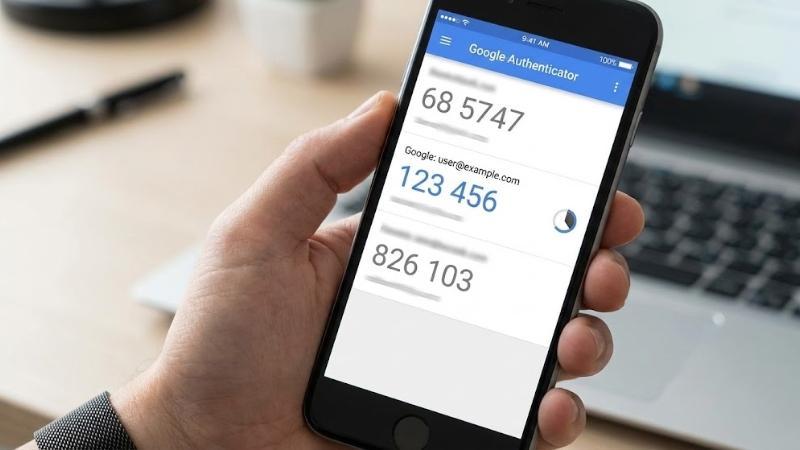
Google Authenticator is a security application that generates temporary verification codes for accounts that support two-factor authentication (2FA).
Instead of relying only on a password, 2FA requires an additional verification step when you sign in.
For example, after entering your password, a website may ask you to provide a six-digit code generated by Google Authenticator.
These codes usually refresh every 30 seconds and can work without an internet connection or mobile network.
This additional security layer makes it harder for someone to access your accounts even if they manage to obtain your password.
How to Transfer Google Authenticator to a New Phone Using Your Google Account
The easiest way to move Google Authenticator to a new device is through Google Account synchronization.
Google introduced cloud synchronization in April 2023, allowing users to save their verification codes to their Google Accounts and access them on other devices.
Follow these steps:
Open Google Authenticator on your old smartphone.
Check whether you are signed in to your Google Account.
Look for the cloud synchronization icon near your profile picture.
Make sure your verification codes are synchronized.
Download Google Authenticator on your new phone.
Open the application and sign in using the same Google Account.
Allow the application to synchronize your saved verification codes.
Once synchronization is complete, your existing authentication accounts should appear on the new device.
Important: Make sure your codes are visible on the new phone before deleting or resetting your old device.
Google supports code synchronization in Authenticator version 6.0 or later on Android and version 4.0 or later on iOS.
How to Transfer Google Authenticator Codes Using a QR Code
If you prefer not to synchronize your verification codes with a Google Account, you can transfer them manually using a QR code.
For this method, you need access to both your old and new smartphones.
Steps to Export Codes From Your Old Phone
Open Google Authenticator on your old phone.
Tap the menu icon.
Select Transfer codes.
Choose Export codes.
Unlock your phone if requested.
Select the accounts you want to move.
Tap Next to generate a QR code.
Steps to Import Codes on Your New Phone
Install Google Authenticator on your new smartphone.
Open the application.
Tap Get Started.
Open the menu and select Transfer codes.
Choose Import codes.
Scan the QR code displayed on your old phone.
Wait for the confirmation that your accounts have been transferred.
If you have many accounts, Google Authenticator may generate multiple QR codes. Scan all of them to transfer the selected accounts successfully.
This method is particularly useful for people who want to keep their authentication codes on their devices instead of synchronizing them through a Google Account.
What Happens If Your Old Phone Is Lost or Damaged?
Losing your old phone can make transferring Google Authenticator more complicated, particularly if you never enabled cloud synchronization.
However, there are still several ways to regain access to your accounts.
1. Check Google Account Synchronization
If your verification codes were previously synchronized with your Google Account, install Google Authenticator on your replacement device and sign in using the same account.
Your saved codes should become available after synchronization.
2. Use Another Device Where You Are Already Logged In
Check whether you are still signed in to the affected service on your laptop, tablet, or another smartphone.
Some services allow users to update their security settings, replace their authenticator app, or generate new backup codes from an existing authenticated session.
3. Use Backup Codes
Many websites provide backup codes when users activate two-factor authentication.
These codes can help you sign in when your usual authentication method is unavailable.
For Google Accounts, you can generate backup codes by visiting:
Google Account → Security & sign-in → 2-Step Verification → Backup codes.
Keep these codes somewhere secure and separate from your phone.
4. Contact the Account Provider
If you cannot access your account through synchronization, backup codes, or another trusted device, contact the service's official support team.
You may need to complete an identity verification process before the provider restores access.
Importantly, transferring Google Authenticator does not automatically recover every account connected to it. Each service has its own account recovery procedures.
How to Avoid Losing Google Authenticator Codes in the Future
A little preparation can prevent significant problems when upgrading or replacing your smartphone.
Here are some important security practices:
Enable cloud synchronization: Save your authentication codes to your Google Account if you are comfortable using this feature.
Keep backup codes: Download or print recovery codes for important accounts and store them securely.
Check your new phone: Verify that all authentication codes work before resetting your old device.
Protect your Google Account: Use a strong password and additional security methods.
Enable Privacy Screen: Google Authenticator supports device PIN, pattern, or biometric protection to restrict access to the application.
Keep your phone updated: Install security updates and use the latest compatible version of Google Authenticator.
Google also recommends considering passkeys and additional two-step verification methods to reduce the risk of account lockouts.
Is Google Authenticator Safe to Use?
Google Authenticator is a useful security tool because it generates one-time verification codes directly on your device.
These codes can work without an internet connection, which makes the application convenient when travelling or when mobile networks are unavailable.
When cloud synchronization is enabled, Google says authentication codes are encrypted in transit and at rest.
However, users should still protect their Google Accounts and devices. Anyone who gains unauthorized access to your authentication codes may have an easier time compromising accounts protected by those codes.
Never share verification codes or backup codes with someone claiming to be a Google employee or technical support representative.
Final Verdict
Google Authenticator makes it easier to protect online accounts, but changing smartphones requires some preparation.
Cloud synchronization is generally the most convenient option because it allows users to access saved codes on a replacement device. Manual QR-code transfers provide another choice for people who prefer not to sync their codes with a Google Account.
If your old phone is lost or damaged, backup codes, existing logged-in sessions, and official account recovery services may help you regain access.
The most important advice is simple: Never erase or sell your old smartphone until you have confirmed that your Google Authenticator codes are safely available on your new device.
Leave a comment
Your email address will not be published. Required fields are marked *